Deployments
This page covers how to deploy models through the dashboard, including vLLM version selection, engine options, local checkpoints and LoRA adapters, extra packages, plugins, GPU assignment, reproducibility manifests, and the deployment lifecycle.
Creating a deployment
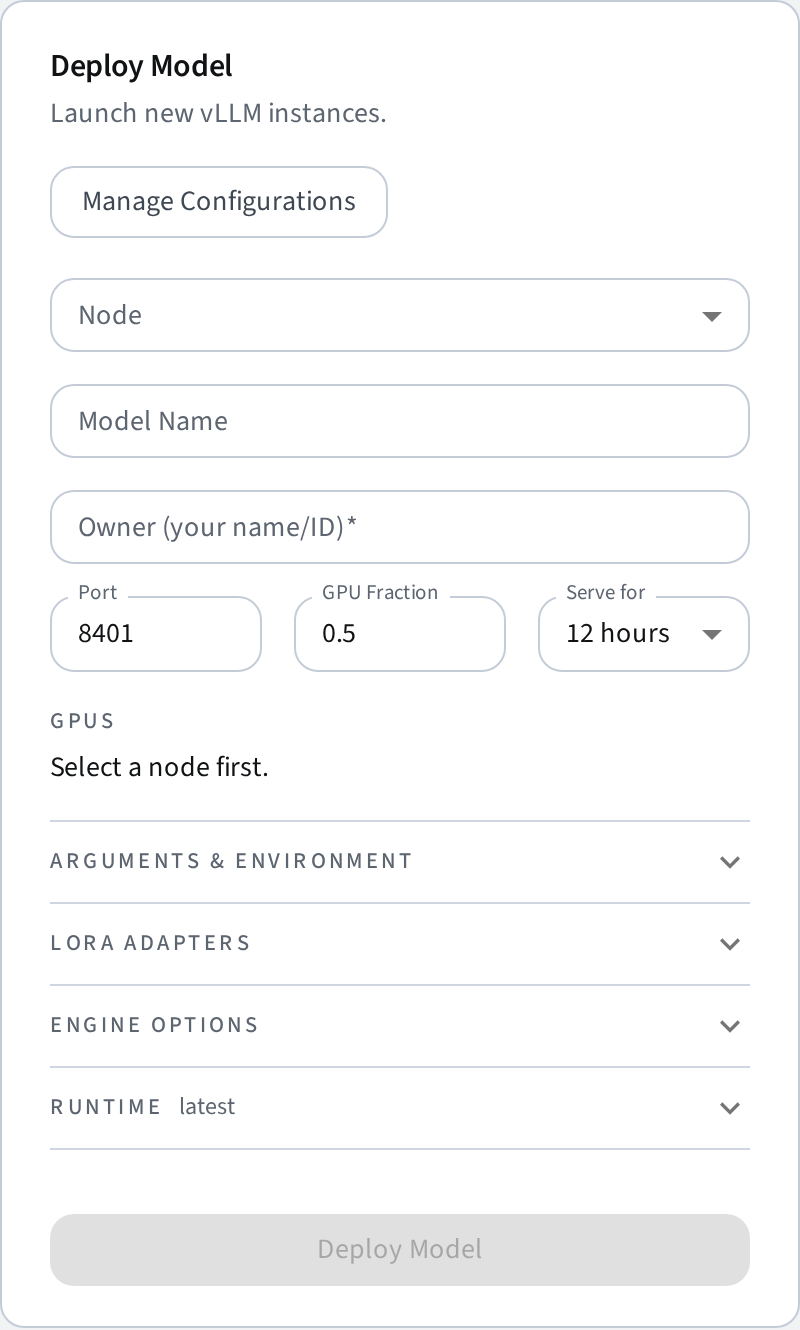
From the dashboard, select a target node, fill in the deployment form, and click Deploy. The required fields are:
| Field | Description |
|---|---|
| Model Name | Hugging Face model ID (e.g. meta-llama/Llama-3.1-8B-Instruct) or an absolute path to a local checkpoint (see Local checkpoints). |
| Port | Port the vLLM OpenAI-compatible server will listen on. |
| GPU Memory Fraction | Fraction of GPU memory to allocate (0.0–1.0). |
Optional fields include Owner (free-text, used for attribution in the table and usage reports), Serve for (auto-stop after N hours; can be extended later without a restart), engine options, LoRA adapters, extra packages, extra args, and env vars.
The form's pre-filled defaults (port, GPU fraction, serve duration, vLLM version, max failed restarts) are configurable cluster-wide in Settings → Deployments.
vLLM version
Every deployment runs in an official vllm/vllm-openai container, via Docker or Podman — whichever the node offers (see Operations → Container runtimes for how the runtime is chosen and the deployment's Settings dialog for which one a running model uses). The version you choose maps directly to an image tag — the image already bundles a matching CUDA runtime and PyTorch, so the node needs no local CUDA/PyTorch setup.
| Input | Image tag |
|---|---|
| (blank) | vllm/vllm-openai:v<latest release> (latest stable, resolved from GitHub). |
0.8.5 |
vllm/vllm-openai:v0.8.5. |
nightly |
vllm/vllm-openai:nightly. |
| 40-character hex string | vllm/vllm-openai:nightly-<commit>. |
The version field placeholder dynamically shows the current latest release so you always know what "blank" resolves to.
Note
The resolved version is stored in the database and displayed in the deployments table, even when you leave the field blank. This way you always know exactly which vLLM version a deployment is running.
How images work
- The requested image is pulled once and cached on the node; subsequent deployments of the same version start instantly (no re-download).
- Each deployment runs as its own container, labelled so the agent can rediscover it after a restart.
- Model weights are cached in a shared HuggingFace cache mounted into every container, so a model is downloaded only once per node.
- When a deployment is stopped, its container is removed; the image stays cached for reuse.
GPU selection
Select which GPUs to use with the toggle buttons in the deploy form. Each button corresponds to a GPU index reported by the node. You can select one or more GPUs.
- If no GPUs are selected, the container is given access to all GPUs (
--gpus all). - Selecting specific GPUs passes only those devices into the container (
--gpus "device=...").
Tensor parallel
When using multiple GPUs for a single model, set Tensor Parallel Size to the number of GPUs. This tells vLLM to shard the model across the selected GPUs.
Engine options
The Engine Options section of the form exposes the most common vLLM flags as structured fields, so you don't need to hand-write CLI args:
| Field | vLLM flag |
|---|---|
| Served model name | --served-model-name |
| Max model length | --max-model-len |
| Dtype | --dtype |
| Quantization | --quantization |
| Max num seqs | --max-num-seqs |
| KV cache dtype | --kv-cache-dtype |
| Swap space | --swap-space |
| Enforce eager | --enforce-eager |
| Trust remote code | --trust-remote-code |
| Revision | --revision (pin an exact HF revision/commit) |
| Seed | --seed (fix the sampling seed) |
These are stored structured in the database (and in manifests), so they survive save/load and redeploy. Anything not covered here can still go into Extra Args, which is appended last and therefore wins on conflicts.
Reproducibility
For experiments you intend to cite or rerun, set Revision and Seed. Together with the pinned vLLM version they make a deployment reproducible; the exact image digest is also recorded automatically.
Local checkpoints
Upload from the dashboard
The easiest way to get a local checkpoint onto a node is the node's Manage dialog → Local Models:
- Upload Folder — pick the checkpoint directory in the browser (
config.json,*.safetensors, tokenizer files); it streams to the node with a progress bar, file by file, with no size buffering at any hop. - Upload Archive — same, but as a single
.tar.gz/.zip; the node extracts it (a single wrapping folder is flattened automatically soconfig.jsonends up at the model root). - Pull from URL — paste an
http(s)URL (e.g. a presigned S3 link) and the node downloads it directly; progress shows in the dialog. Archives are extracted; a single-file URL (e.g. a.gguf) is stored as-is.
Uploaded models live under {VLLM_CLIENT_ROOT}/.models/<name> on the node (default ~/.vllm-client/.models/<name>; in service mode, under the runtime directory), are always part of the allowed model dirs (no MODEL_DIRS configuration needed), and are mounted read-only into every new vLLM container. The dialog lists them with size and in-use status; managed models can be deleted there when no deployment serves them. Model names must be a single path segment (letters, digits, ., _, -), and an upload to an existing name is rejected — delete the old model first.
To deploy one, select the node in the Deploy Model form and pick it from the Local model on this node dropdown (it fills the model name with the checkpoint's absolute path). Transfers are checked against the node's free disk space up front, and interrupted uploads are cleaned up automatically.
Pre-existing checkpoints (MODEL_DIRS)
If your checkpoints already live on the node (shared filesystem, rsync workflows), allowlist their directories instead: set MODEL_DIRS in the client agent's .env (comma-separated) and restart the agent:
MODEL_DIRS=/data/checkpoints,/data/adapters
Then use an absolute path as the model name, e.g. /data/checkpoints/my-finetune. Allowed directories (including the managed upload dir) are mounted read-only into every vLLM container at the same path, so paths behave identically inside and outside the container. MODEL_DIRS entries also appear in the Local Models list and the deploy-form picker, marked as external (they cannot be deleted from the UI).
Paths are validated on the client: they must exist and resolve to a location inside an allowed directory (symlink and .. escapes are rejected).
LoRA adapters
The LoRA Adapters section lets you serve one or more adapters alongside the base model. Each row takes a name (how clients address the adapter) and a path — either a local path inside an allowed model dir, or a Hugging Face hub adapter id.
Local adapters can be put on the node the same ways as full checkpoints: upload the adapter folder/archive via the node's Manage dialog → Local Models (then use its managed path, ~/.vllm-client/.models/<name>), or place it in a MODEL_DIRS directory yourself.
This translates to vLLM's --enable-lora --lora-modules name=path .... Adapter names appear in /v1/models (with parent pointing at the base model) and can be used directly as the model field in requests, both via the gateway and the node directly. Adapters served this way also show up on the deployment's Endpoint dialog ("also serves: …"), are stored in saved configs and manifests, and survive host restarts like the rest of the launch config. Additional LoRA tuning flags (e.g. --max-lora-rank) go in Extra Args.
Extra packages
Expand the Add Extra Packages section to install additional pip packages on top of the base vLLM image. Enter one package per line, using standard pip syntax:
transformers>=4.40
flash-attn
When extra packages are present, the client builds a thin derived image (FROM vllm/vllm-openai:<tag> + pip install ...) and caches it by a hash of the base image and package list, so the build happens once and is reused across identical deployments.
Plugins
vLLM supports Python plugins passed as CLI arguments (e.g. --reasoning-parser-plugin my_plugin.py). To use a plugin:
- Click the upload button and select a
.pyfile. - The file is uploaded to the client node and stored as-is.
- The file path is automatically added to the Extra Args field.
Supported upload formats:
| Format | Behavior |
|---|---|
.py |
Stored as a plugin file. Path added to extra args. |
.whl |
Stored as a wheel. Path added to extra packages for pip install. |
.tar.gz / .zip |
Extracted and path added to extra packages. |
Extra args
The Extra Args field lets you pass additional CLI flags to the vLLM server. These are appended directly to the vllm.entrypoints.openai.api_server command. Examples:
--max-model-len 4096
--reasoning-parser-plugin /path/to/plugin.py
--enforce-eager
Environment variables
Add environment variables for the deployment under the Env Vars section. Common use cases:
HF_TOKENorHUGGING_FACE_HUB_TOKENfor gated models (e.g. Llama).VLLM_ATTENTION_BACKENDto override the attention backend.
Tip
Sensitive values (tokens, keys, passwords) are masked in the deployment logs for security.
Deployment lifecycle
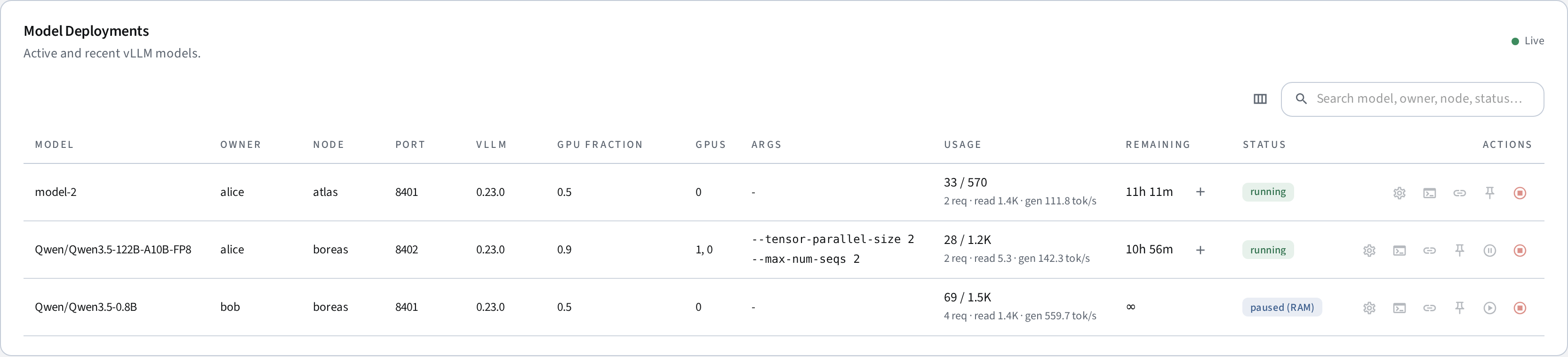
A deployment goes through these states:
| Status | Meaning |
|---|---|
| starting | The client is preparing the vLLM image and starting the container. While a new image version is being pulled (20+ GB on first use), the status chip shows live progress inline, e.g. starting (pulling image · 3.5/21.6 GB); warm starts of cached versions skip this entirely. |
| loading | The vLLM container is starting up. The status shows the current engine phase (downloading weights, loading weights, compiling). |
| running | The vLLM server is healthy and responding to requests. |
| paused_ram | The model is paused (warm cache): GPU VRAM freed, weights held in CPU RAM. The deployment remains routable — the first inference request wakes it automatically. The serve-duration countdown continues while paused. |
| stopping | A stop was requested and the process is shutting down. |
| stopped | The process has exited cleanly (or its serve duration expired). |
| error | The process exited unexpectedly. The table shows a classified cause; check logs for details. |
| unreachable | The host backend cannot reach the client node. |
Readiness detection
After starting, the backend polls the vLLM server's /health and /v1/models endpoints every 2 seconds. The deployment transitions from loading to running once either endpoint returns HTTP 200.
Failure classification and crash-loop protection
When a container exits unexpectedly, the agent matches the log tail against known failure signatures (GPU out of memory, bad CLI arguments, missing/gated model, etc.) and surfaces an actionable cause in the dashboard instead of a bare "error".
A deployment that keeps crashing without ever becoming ready is stopped after MAX_FAILED_RESTARTS attempts (client setting, default 3; overridable per deployment in the form), so a misconfigured model cannot restart-loop forever. Independently, a host-side watchdog marks deployments as errored if they sit in starting/loading longer than START_TIMEOUT_SECONDS (default 30 minutes).
Extending a running deployment
Deployments started with a Serve for duration shut down automatically when it elapses. To keep a model alive longer without restarting it, use the + button in the Remaining column — preset extensions (+1h / +4h / +12h / +24h), Custom… for an arbitrary number of hours, or Infinite to drop the deadline entirely and serve until stopped (matching the launch form's duration options). Via the API, send either hours or infinite:
curl -X POST http://<host>:8000/api/deployments/<id>/extend \
  -H "Content-Type: application/json" -d '{"hours": 4}'
# or remove the deadline entirely:
curl -X POST http://<host>:8000/api/deployments/<id>/extend \
  -H "Content-Type: application/json" -d '{"infinite": true}'
Extensions apply only to active deployments and re-arm the expiry warning notification; switching to infinite disarms it (there is no longer a deadline).
Pause, resume, and pin
On nodes with warm cache enabled, running deployments show additional actions:
- Pause — puts the model to sleep, freeing GPU VRAM while keeping weights in RAM. The deployment status changes to
paused_ramand remains routable through the gateway — the first request transparently wakes it (a few seconds, no re-download). The serve-duration countdown continues while paused, so a paused deployment still expires on schedule. Pinned deployments cannot be paused. - Resume — explicitly wakes a paused model without waiting for a request.
- Pin — protects a deployment from automatic eviction by the warm cache. A pinned model is never paused by the auto-evictor, even if it is the least recently used. Unpin to allow eviction again.
These actions are not available on unified-memory nodes (e.g. DGX Spark), where pause has no effect.
Logs
Click Logs on any deployment to stream its output in real time. Every line is prefixed with a UTC timestamp ([2026-06-11 08:00:32] …). Logs include:
- Image pull/build progress and agent events (
[docker]/[agent]prefixed lines). - vLLM server startup and runtime output (streamed from the container).
- ANSI escape codes are automatically stripped for clean display.
Monitoring noise is filtered out: the HTTP access-log lines produced by the agent's own /metrics polling and /health checks (every ~15 s) never enter the log. Inference request lines (POST /v1/...) and the engine's throughput stats are kept.
The dialog shows the live tail (last ~400 lines). The full log of the current run is persisted on the node under {VLLM_CLIENT_ROOT}/.logs/ (default ~/.vllm-client/.logs/; in service mode, under the runtime directory) and survives agent restarts without gaps or duplicates — use Download full log in the logs dialog to fetch it. One file per deployment run is kept (the previous run remains as <file>.1); files rotate at LOG_MAX_MB (default 50 MB) and are deleted after LOG_RETENTION_DAYS (default 14) without activity — see Operations.
Connecting to a deployment
Click Endpoint on any running deployment to get copy-paste connection details: the base URL, a Python openai snippet, and a curl one-liner — each with a toggle between the cluster-wide gateway URL and the direct node URL. The table's Usage column shows each deployment's lifetime prompt/completion tokens, total requests, and current tokens/s.
Saved configurations
You can save and load deployment configurations from the dashboard. A saved config stores all deployment settings (model, port, GPU selection, version, packages, extra args, env vars, LoRA adapters) so you can redeploy with one click.
Reproducibility manifests
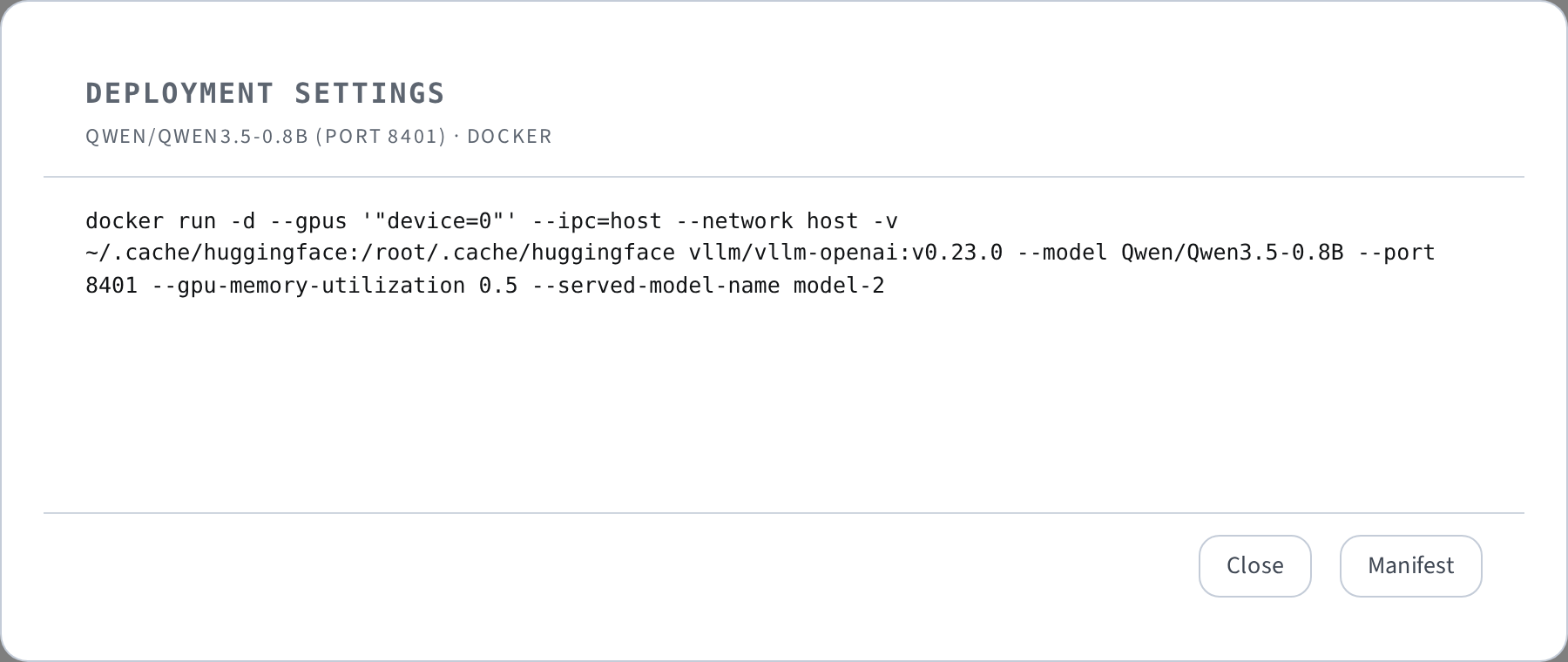
Every deployment can be exported as a self-contained JSON manifest — open the deployment's settings dialog and click Manifest (copy, download, or load it back into the launch form). It records everything needed to cite and reproduce the serving setup:
- model (and served model name), HF revision, sampling seed
- exact vLLM version and the resolved image digest
- all engine args, extra args, extra packages, and LoRA adapters
- GPU assignment (ids, names, memory fraction, tensor parallel size) and node hostname
- env var keys only — secret values are never written to manifests
To redeploy from a manifest, load it into the launch form in the UI, or POST it to the API:
curl -X POST http://<host>:8000/api/deployments/from-manifest \
  -H "Content-Type: application/json" \
  -d '{"manifest": <manifest JSON>, "node_id": 1, "port": 8001, "env_vars": [...]}'
A redeploy pins the vLLM version tag, HF revision, and seed; the image digest is informational (tags can move, so compare digests if bit-exact images matter). Env var values must be supplied again at redeploy time.
Deployment recovery
If the host backend is restarted while deployments are still running on client nodes, the sync loop automatically rediscovers them and re-creates the database entries. Running deployments are never interrupted by a backend restart.